Friends can now play together on the same phone or at different times on their own.
Server
Friba now has its own public server at friba.followthearc.games. Accounts, friends, challenges and leaderboards work anywhere the phone has an internet connection, not only on the developer's home network. The server does not log IP addresses, and the privacy policy explains what is stored and why.
Results
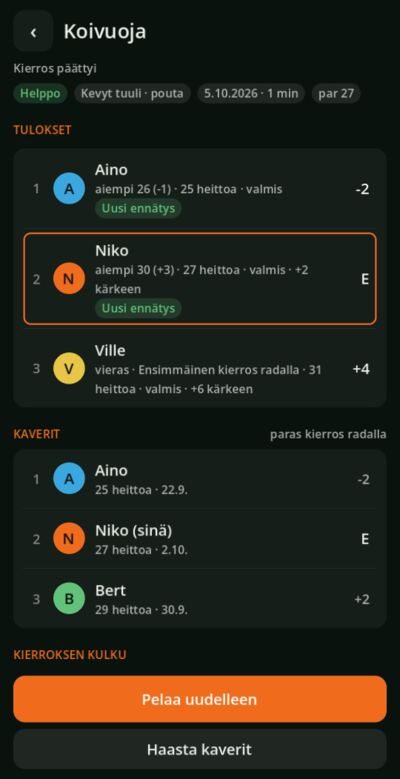
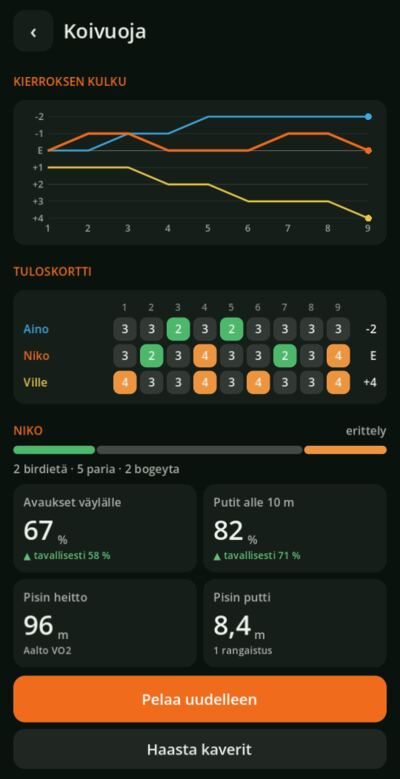
At the end of a round a new results screen opens: every player's score and their previous best, friends on the same course, the progress of the round as a graph and a scorecard marked with colours. The same screen serves as the leaderboard for a challenge and the Daily Round, also during a round.
- A screen of its own: results are a page like the other menus. ‹ takes you one step back, and the bottom bar has Play again and Challenge friends (side by side in landscape so more content fits).
- Friends: friends on the course in their own section with dates. While results are loading a progress row is shown, and a missing connection says so directly. An incoming response no longer jumps the page while you scroll.
- Scorecard: the holes fit on one row without split numbers, and the round score is shown on the right.
- Breakdown: drives on the hole, putts under 10 metres and the longest throws compared with your own normal level as four tiles. A tile with no data is left out.
- Round history: old rounds are found in Stats in the same screen.
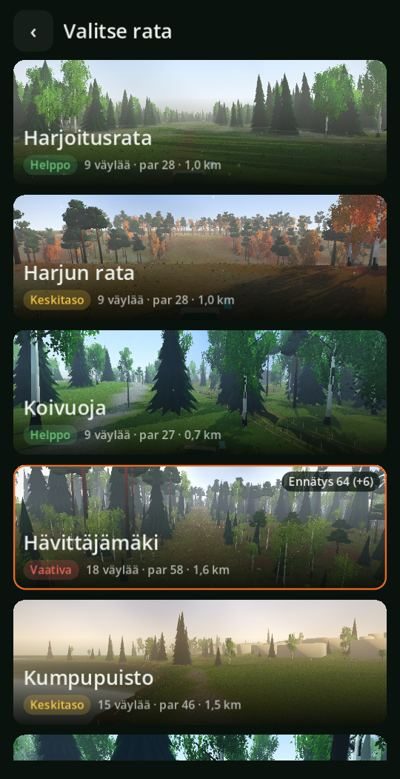
- Difficulty class: the course list shows whether a course is easy, intermediate or demanding.
Challenges
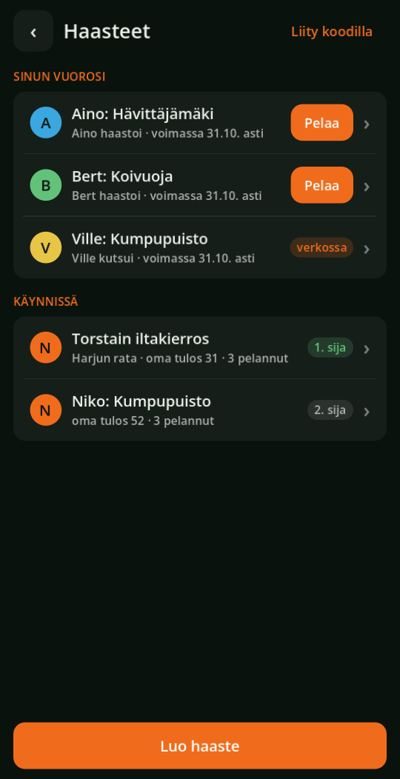
You can challenge a friend to their own course, and each of you plays when you have time: one at lunch, the other in the evening. When the friend has played, a notification appears in the main menu showing at once whether you are ahead or behind.
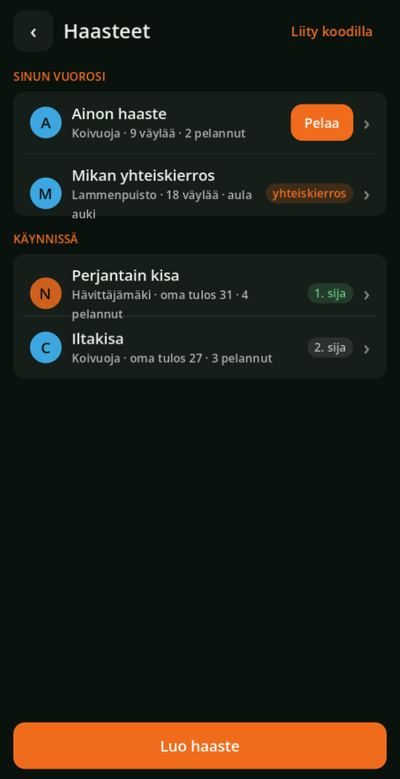
- Challenges: open challenges, your own challenges with your score, and the Daily Round on the same screen.
- Challenge: from a friend's profile or straight from the round results into a new challenge on the same course.
- Notifications: challenges, friends' results, friend requests and score suggestions; tapping takes you to the right place. New ones are in their own group with an orange dot, read ones in the Earlier group dimmed; the row shows the sender's avatar and how long ago the notification arrived. An empty list and a missing connection tell you what to do.
Settings
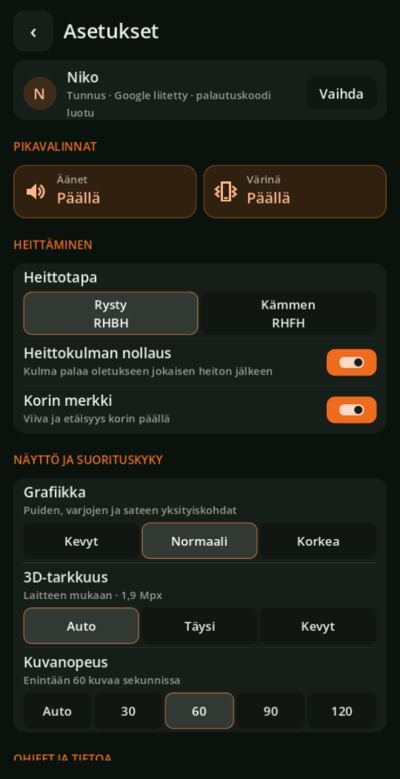
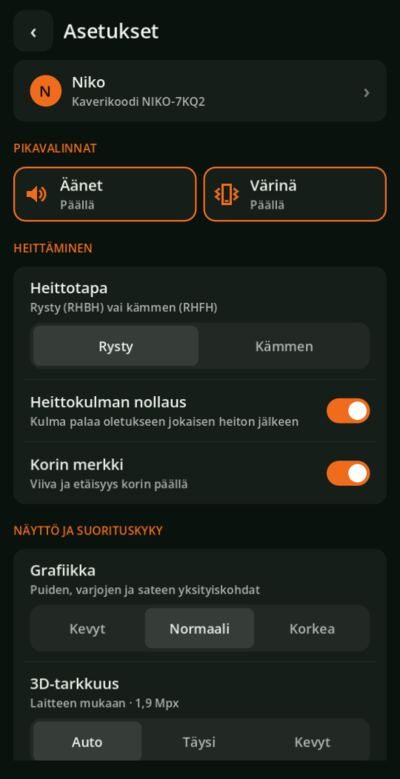
Settings have been regrouped. At the top are your nickname and friend code; tapping the row opens the Account screen, where you can change the nickname. Then come the sound and vibration shortcuts, throwing, display and performance, and help.
- Choices: the options for throwing style, graphics, 3D accuracy and frame rate are all visible at once, and values no longer have to be cycled with a button.
- Switches: Reset throw angle and Basket marker are on/off switches, and the whole row is tappable.
- Shortcuts: Sounds and Vibration are framed tiles; the frame shows which one is on.
- Performance: Performance test and Device name are in the Display and performance group.
What's new and the performance test
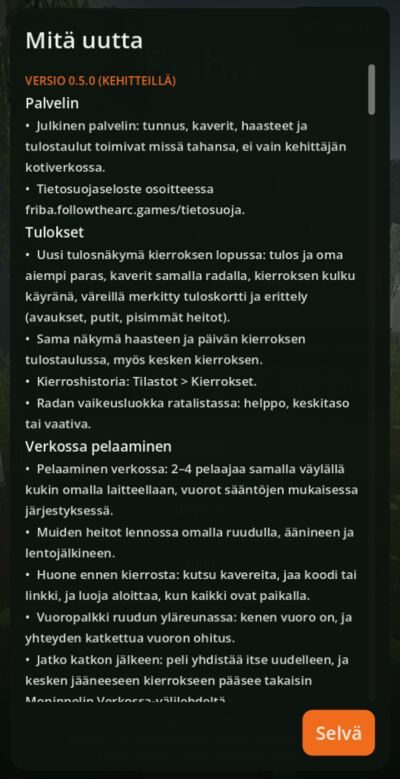
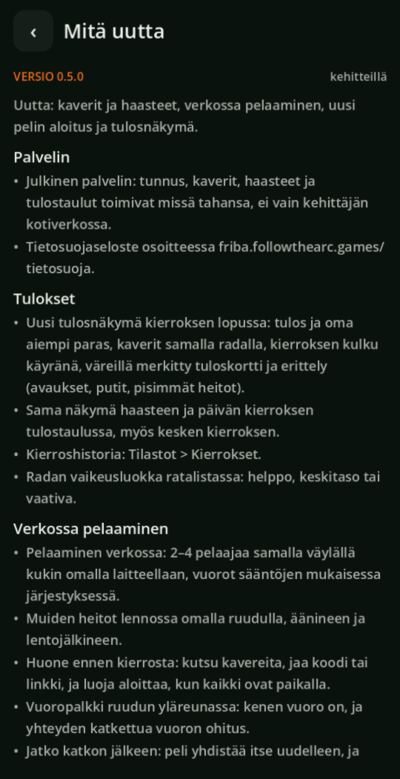
The changelog and the performance test are now screens of their own, like Settings. On the What's new screen the latest version is open and older versions open by tapping, so a long history does not drown the newest changes. After an update the app says once, in one sentence, what is new, and Show all changes takes you to the screen.
- What's new: versions grouped, each showing the number of changes; the group headings are the same as in the changelog.
- After an update: the window has a short summary and two buttons (Show all changes, Close), no longer a long scrollable list.
The performance test's introduction, result and comparison of quality levels are screens with the same bottom bar as elsewhere: Start test and Run again are within thumb reach.
- Result: the overall result large, the scenes as rows and the change from the previous run below the row; technical details and the device are in their own group.
- Comparison of quality levels: three levels as rows and per-scene figures expandable.
Putting
Putts are more accurate: the spread gets smaller the closer you are to the basket. A perfectly aimed putt goes in almost always from 5 metres and about two times out of three from 10 metres; 15–20 metre putts are still rare successes.
Starting a game
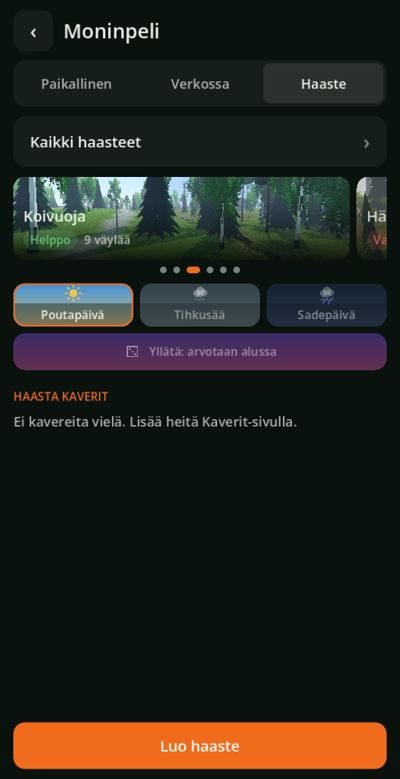
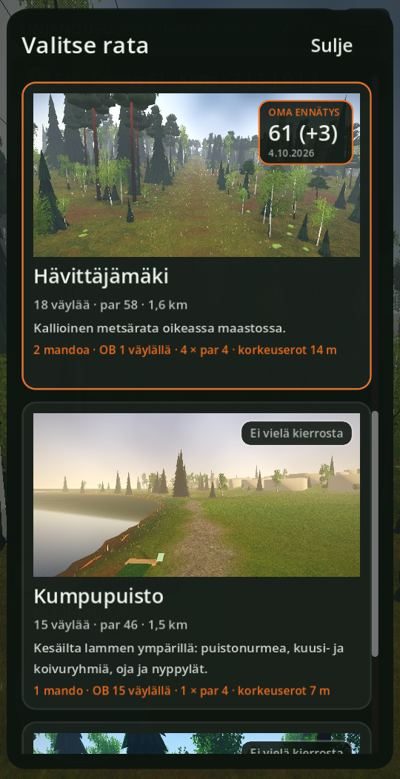
Starting a game was scattered: course, weather and players in different places, many Play buttons and words mixed up. Now the Play button leads to one path: first choose the game mode, then course and weather on one screen, and finally tap Start round. The back arrow always goes one step back.
- Game modes: Single player, Multiplayer, Daily Round and Practice are their own cards with their own colours. Multiplayer has the tabs Local (one phone), Online (with friends on different phones) and Challenge.
- Course and weather: course pictures are browsed sideways, and the weather is chosen from icons (clear, drizzle, rainy). Surprise draws the weather at the start of the round.
- Locked fields: in the Daily Round and when playing a challenge the course and weather are given, and they are shown locked on the same screen.
- Confirmation: if the previous round is unfinished, you are asked only after the Start button: you can return to the round or start a new one.
- Main menu: one large Play, a Continue card for an unfinished round and four smaller items; the tutorial is found in Settings.
 0.40.5
Menus
The menus are now screens of their own, like Settings: a back arrow at the top, content grouped, and the main action at the bottom within thumb reach. The in-round menu now has only things that belong to the round.
- Challenges: at the top, challenges where it is your turn; played ones show your position. The challenge screen has the leaderboard and the invited players.
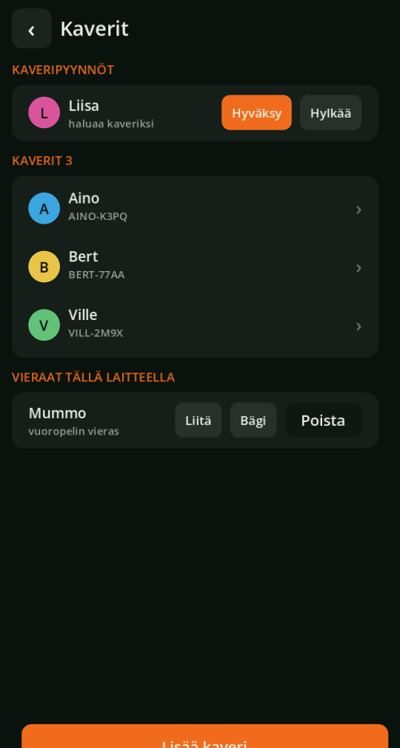
- Friends: requests at the top, and a friend's screen compares your records with theirs.
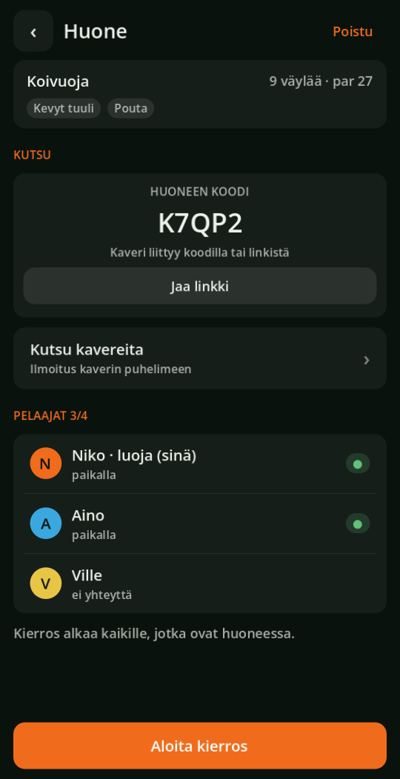
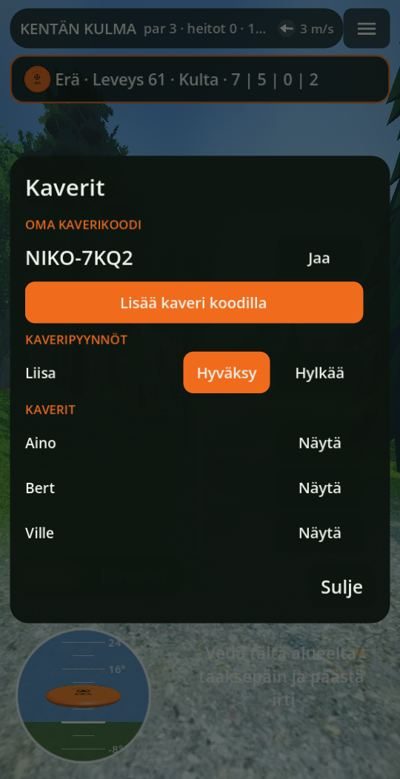
- Room: the room for an online round is its own screen, where you can invite more friends.
Menu screens with the same pattern
The other menu screens also follow the pattern of Starting a game: the same top bar, the same rows and buttons, and the same words everywhere. A challenge is a challenge (not a competition), playing online is Online (not live round) and the friends' meeting place is a Room (not a lobby).
- Challenges: an empty screen tells you what to do, and rounds played online are marked "online".
- Challenge: the leaderboard and invited players have avatars on their rows.
- Room: the room code is large on a card with a Share link button.
- Rounds: rounds are grouped by month, all rows are the same height and a row shows the course, date, game mode (Single player, Challenge or Multiplayer) and score. An empty list guides you to play.
- Choosing a friend: Invite friend opens as a small window with friends as rows with avatars and Cancel below. If there are more than four friends, the choice is a screen of its own.
- Practice summary: at the end of practice the result is large on its own screen, and a new record is shown with a marker and the previous record. At the bottom there is only Play again; the arrow returns to practice.
- Add friend: entering a friend code is a field and an Add button on the screen (not a separate window). If the code is invalid or it is your own code, the reason is shown below the field; if the connection is missing, the screen says so and offers Try again.
- Add player: adding a player to a local round is a screen, not a floating window. Friends and guests are in their own groups, every row has one Add button, and the number of players is shown below the heading (3 / 4). When the room is full, the rows dim and the screen states the maximum. A new guest is entered in a small window with a name field. Removing a player is on the Local tab, and the throwing order is the order of addition.
- Stats and Achievements: stats are two tabs. The summary shows rounds, birdies, longest putt and longest drive as large numbers, and below are courses, hole results, putting and drives as grouped rows. The Achievements tab divides achievements into Achieved and Not achieved; names and descriptions are clearly readable and achieved ones show the date. The orange Rounds button is gone: Round history is a row at the end of the Rounds group.
- Bag: discs are a two-column gallery, each with a picture, name, type, flight numbers and a wear bar. Add disc is the orange button at the bottom, and in a full bag (12 / 12) it is dimmed and says "The bag is full". A disc's own screen has large flight numbers, wear and weight plus Move up and Remove from bag; removal asks first, and the default choice is Keep. Adding a disc proceeds from manufacturer to model: models can be filtered by type with a scrollable filter row, plastics are rows with descriptions and colours have names, so the choice does not rely on colour alone. ‹ always goes one step back.
Playing online
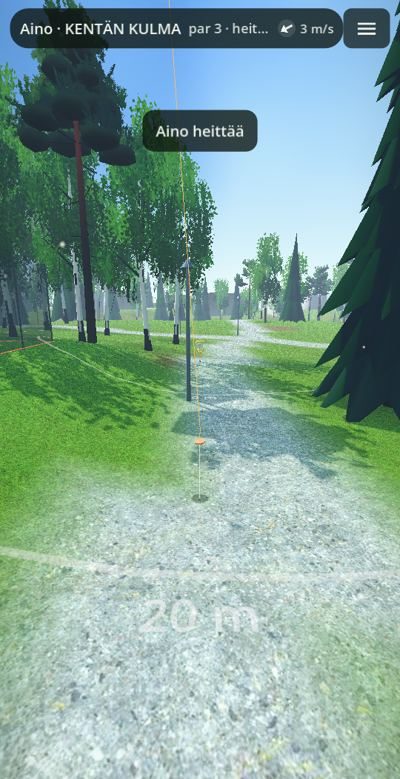
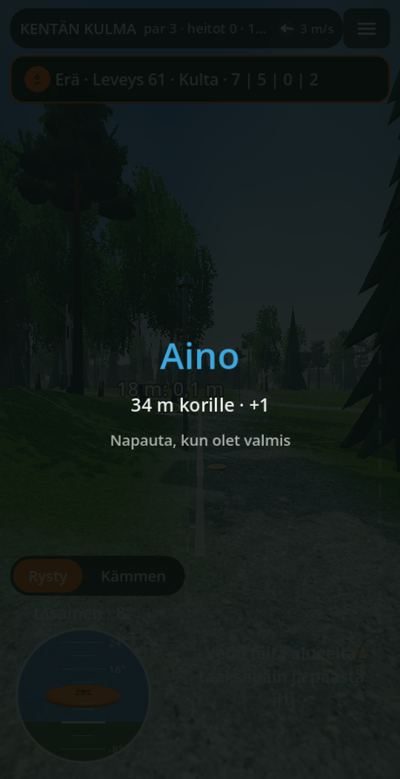
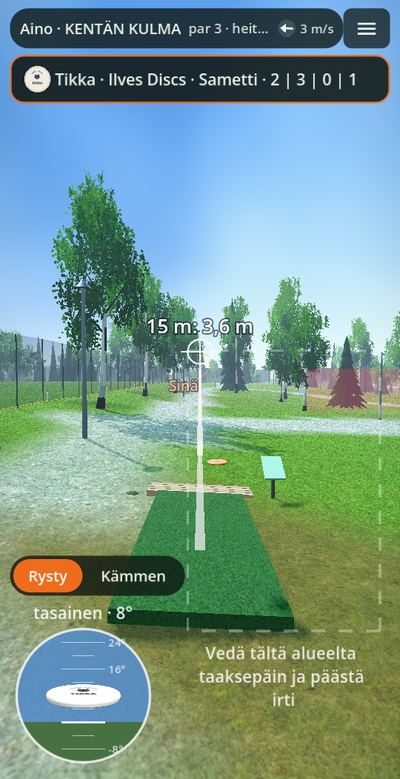
Friends can now play a course together, each on their own phone, even in different places. The turn passes according to the rules, and the others' throws appear on your screen in flight with sound: you see when a friend's disc hits the chains or stays in a spruce.
- Room: create a room from the Multiplayer Online tab, invite friends or share the code, and start when everyone is there.
- Turn bar: the top of the screen shows whose turn it is. If a player's connection drops, the others can skip their turn, and they continue when they return.
- Interruptions: the game reconnects by itself, and you can return to an unfinished round from the Multiplayer Online tab.
- Results: every round is saved as in a challenge: leaderboard, stats and comparison with friends.
Local multiplayer
One phone can host 1–4 players (Multiplayer › Local): you, friends and guests. The order follows the rules: drives in the finishing order of the previous hole, and on the hole the player farthest from the basket throws. The others' discs stay on the hole in the player's colour.
- Handover card: when the player changes, the game pauses so that passing the phone does not cause an accidental throw.
- Friends' and guests' results: a friend's round is sent to them for approval, a guest's round goes to the guest profile; a guest can later be linked to a friend.
Friends and account
Every player has an account that creates itself: no login, email or name. Add a friend with a friend code; a friend's records are shown course by course.
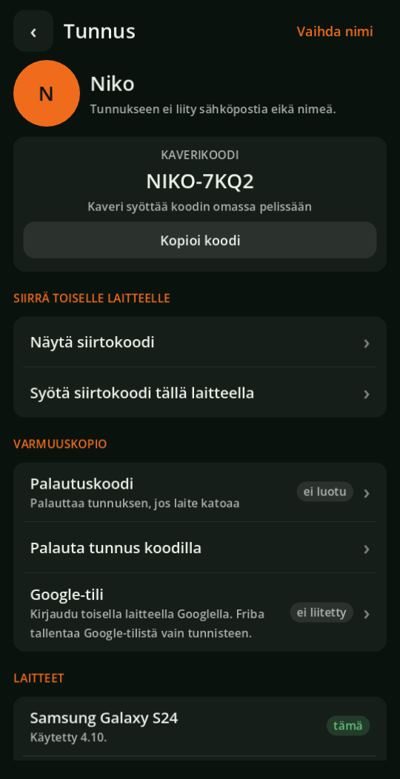
- Account screen: your friend code at the top, copyable, and below it Move to another device, Backup, Devices and Your data in clear groups. Changing the name is in the top bar.
- Transfer and recovery: the account can be moved to another device with a transfer code, and back with a recovery code if the device is lost. The code is shown large on its own screen and copied with one tap.
- Saving the recovery code: the code is not shown again, so when leaving the screen you are first asked whether the code has been saved.
- Google: the account can also be moved to another device by signing in with Google; only the identifier is stored from the Google account.
- Devices: devices linked to the account are shown with their last use, and any device other than this one can be removed.
- Confirmation for destructive actions: removing a device, creating a new recovery code, disconnecting Google and deleting the account all ask first; the default choice is always to keep.
- Your data: you can download or delete your data from the server in Settings.
- Shared between devices: rounds, stats, achievements and the bag travel with the account.
The basket stands out better
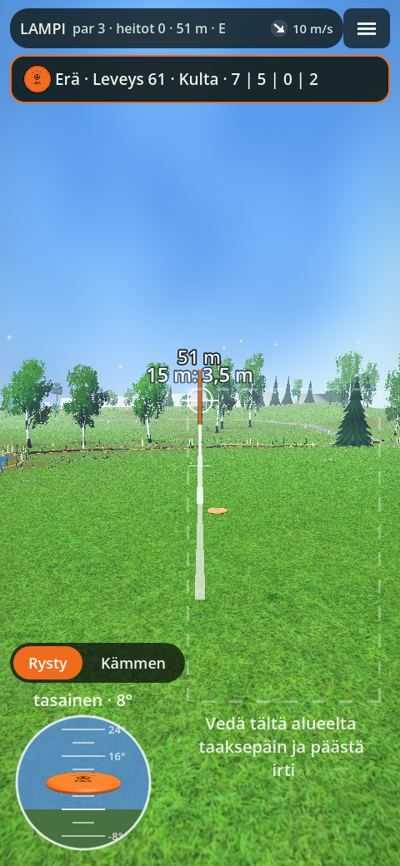
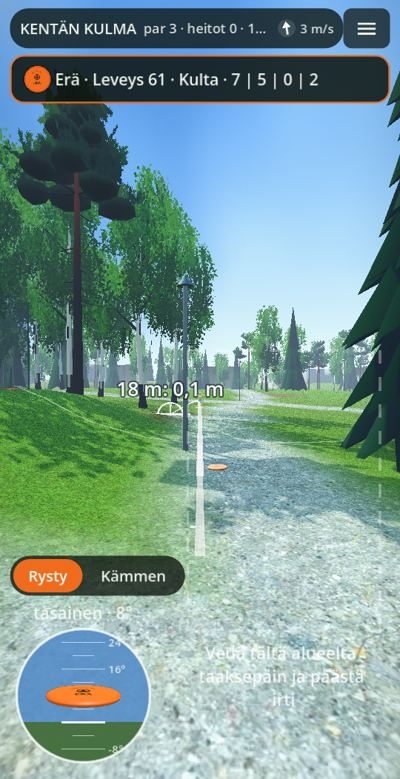
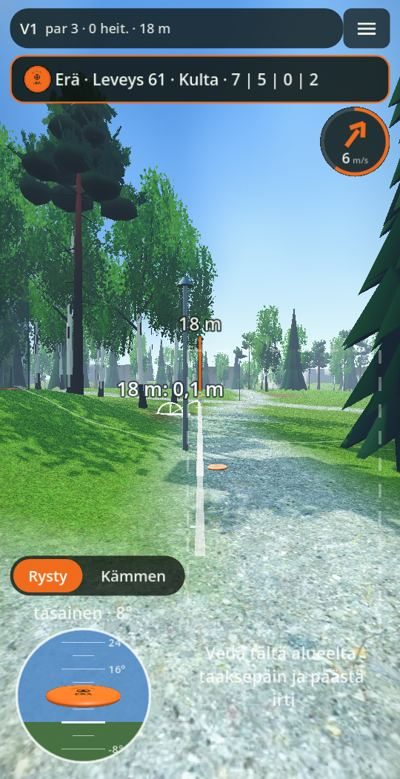
A thin orange line runs over the basket with the distance at its end, so the basket is easy to find even on a small screen. Up close the marker dims and disappears at putting distance. If the basket is outside the screen, an arrow and the distance are shown at the edge. The marker can be turned off in Settings (Basket marker).
Compact top bar and wind disc
The top bar now has only the hole number, par, throws and distance, so the information fits on one row even on a narrow phone. The hole name and round score have been dropped. The wind is its own disc: the ring fills according to strength and its colour shows the level (calm, moderate, strong), and an arrow shows the direction.
 0.40.5
Notification cards
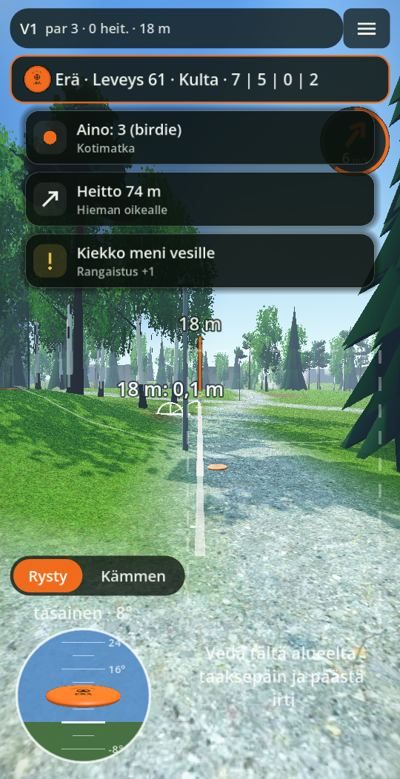
Notifications arrive at the top of the screen as a card: icon, title and subtitle. Other players' throws, baskets and mistakes are distinguished by colour, and a new notification replaces an old one on the same topic. The disc's name no longer announces itself when selected.
Small improvements
- Bag: the Sort button orders discs by speed and stability.
- Friend code: your own Copy code button copies the code as it is; link sharing has been removed.
- Settings: the screen also scrolls when dragging over the buttons.